
Recent Activity Module: Track Customer Communication & Manage Payment Methods
Track all customer communication in one place with the Recent Activity module. Customers can now manage payment methods per subscription and filter impact stats.
Recent Activity - Manage Customer Communication!
We know many of you have been looking for a way to better track communication with customers, so we're excited to share the Recent Activity module! This section is located directly above the Service Location field on the customer detail page. You can expand the field to see ALL customer activity including:
Messages from the portal
Missed pickup reports
Address change requests
Cancellation requests
SMS messages
Voicemails
Stop history
Orders
Custom entries
You can filter by a time range and event types:
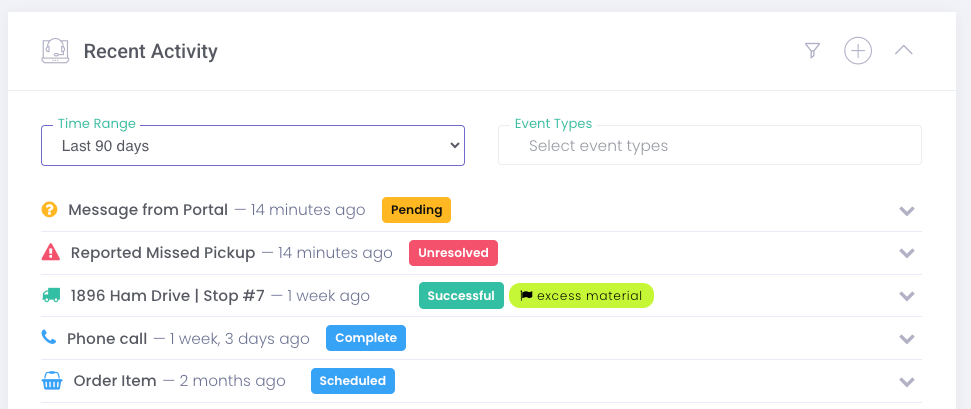
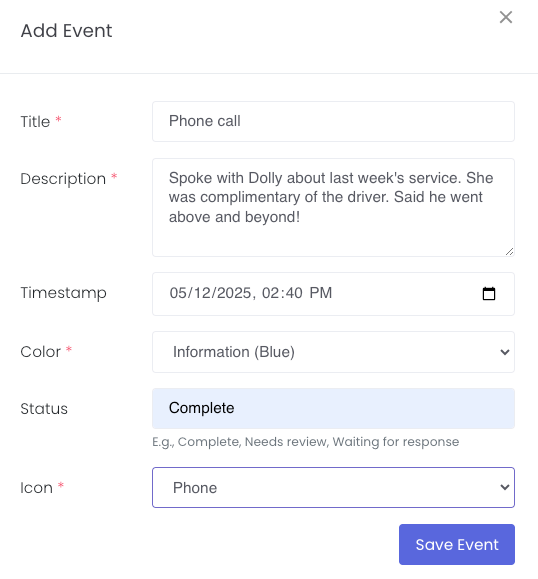
In addition (and probably the most exciting part!), you can add events too! This is a great way to add details on phone calls, external emails, and communications. Many of you have been using the Notes field on the customer level to track this info. We hope this will provide a more seamless and organized method of documentation. To add an event, click the plus sign icon:
Managing Payment Methods via the Portal
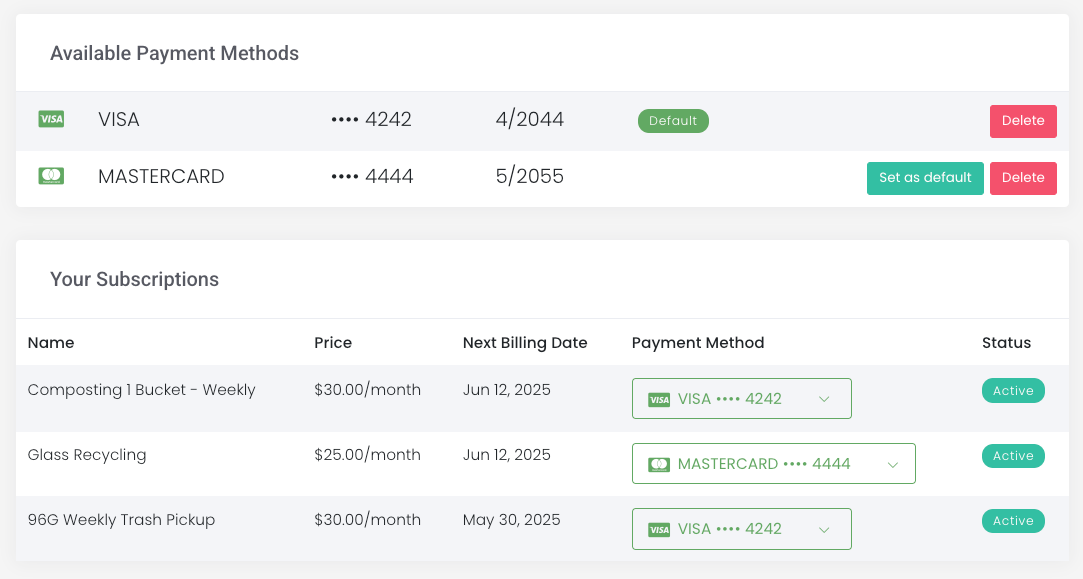
Customers now have the ability to manage what payment method is attached to each subscription. Customers can access this in their portal by going to Account & Billing > Payment Method.
This feature will provide more granular control for the customer and will be especially helpful for those that have one account for both personal and business services.
Date Range for Impact Statistics
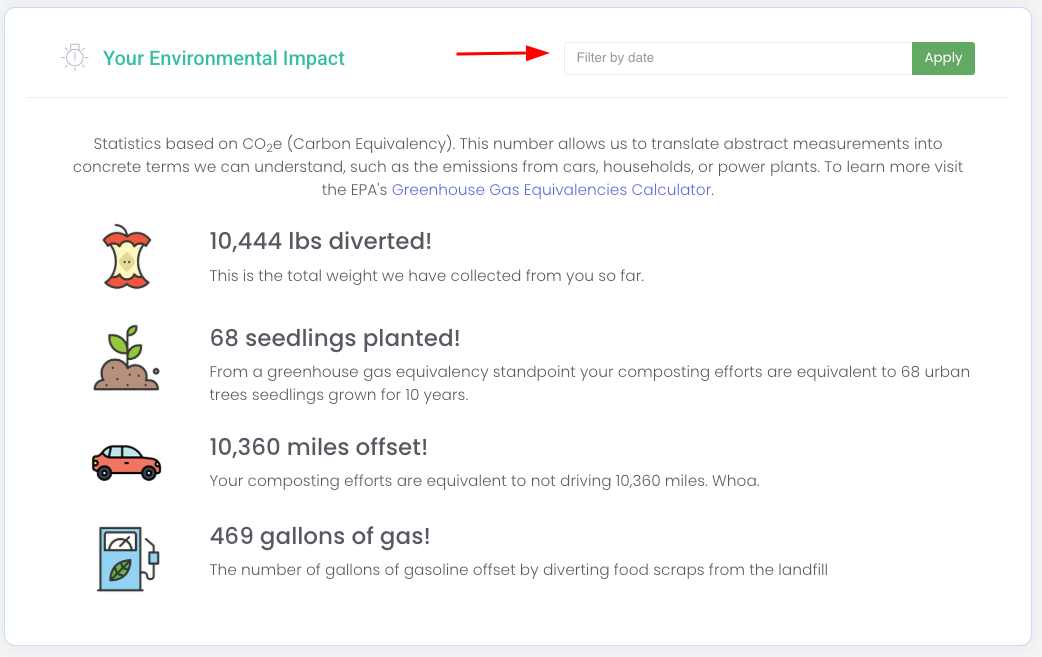
For our clients that use the Impact Statistics module, your customers can now filter by a date range in their customer portal. We know many commercial customers are interested in reporting on monthly stats, so we hope this is helpful!
Driver App Release Candidate - v2.26
The current beta version (v2.26) is now our official release candidate. Currently about 7% of stopSuite drivers are already using this version as part of the Beta program. We have made some major improvements thanks to everyone's feedback. The new version will be available to all drivers this Friday, May 16th!
Enhanced Portal Shop Design & Customer-Selected Delivery Dates
Improved portal shop design for better readability plus new customer delivery date selection feature. Let customers choose when products are delivered.
Portal Shop Products
We've recently updated the look of the Portal shop products. It's a slight change but offers a cleaner look. We hope this improves readability and the overall experience for your customers!
Before:

After:

PS. Did you know about the Options settings on the product level? This can be helpful if you have one product with different sizes, colors, or scents, for example. Instead of making a product for each size, etc., you can make one and add options! You can add inventory to each option and add an up-charge fee!
Requested Delivery Date for Portal Products
We're also excited to announce you can now offer your customers the option to select a future route date for delivery! This is a global shop setting for all deliverable products in the customer portal only.

Customers will be able to select a date from the drop down menu for each product they are ordering. The available dates are based on the customer's future scheduled routes. However, if the product uses custom delivery schedules or routing rules, the dates will respect those rules accordingly.
To enable this setting, go to Settings > Customer Portal & Shop. It's the fourth field under Customer Portal:

We hope this offers your customer's more flexibility when ordering products or one-time services from the customer portal, and a little less busy work on your end!
Service Area Requirements, Flag-Triggered Actions & Shop Order Status Updates
Restrict custom form signups by service area, trigger driver actions with flags, track 'Ready for Pickup' status, and resend updated shop order confirmations.
Service Area Requirements on Custom Forms
By default, custom forms do not restrict signups by address. You now have the ability to require customers signing up via a custom form to be in an active service area. To enable this feature, go to Customers > Custom Forms. Edit or create a new form and scroll midway down. There is a field to Require location in service area:

If you decide to enable this field, you'll also need to enable the Require location field (directly above this one!).
Trigger Driver Actions by Flags
You can now trigger driver actions via flags! On the flag page, enable the Create driver action box. An additional field will pop up for you to enter the driver action instructions. It's important to note that if the customer doesn't have a future scheduled route, no driver action will be created.

New Shop Order Status: Ready for Pickup
Any product that is set to Pickup Required can have a status of Ready for pickup on the Order Items page (Shop > Order Items). Click the box next to the order item > Actions > Mark as Ready For Pickup:
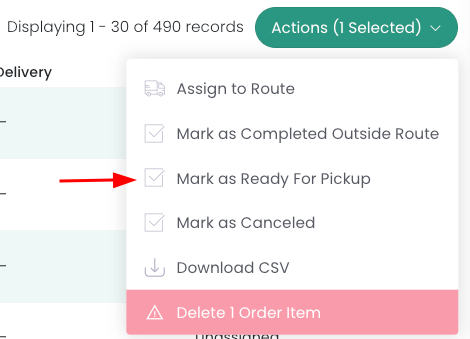
We hope this helps with workflow and communication among team members!
Resend Shop Order Confirmation Email
You can now send customers an updated order confirmation email when assigning their shop order to a route. This can be helpful if you want notify the customer of the. The email will have the subject "Order Updated" instead of "Order Confirmed". To trigger this email, go to Shop > Order Items. Check the box next to the order item > Actions > Assign Order Items to Route. Select the route from the dropdown menu and then check the box to Send customers an updated order confirmation email:

Driver App Update: Version 2.23 Now Available
We're excited to announce that after a successful month-long beta testing period, the latest version of our Driver App is ready for full deployment.
Thanks to your valuable feedback, we've implemented numerous improvements across 20 different beta iterations. Version 2.23 is now available as our release candidate in the Play Store.
What's Next:
Beta testers: Feel free to download the beta version today!
Full release: Version 2.23 will be automatically be available as the standard version starting next week.
Enhanced Search, Route Metrics & Live Tracking Map Replay
Search customer notes and Stripe plans, view route metrics with distance and time per stop, and replay driver routes with live tracking map playback.
Search Customer Notes
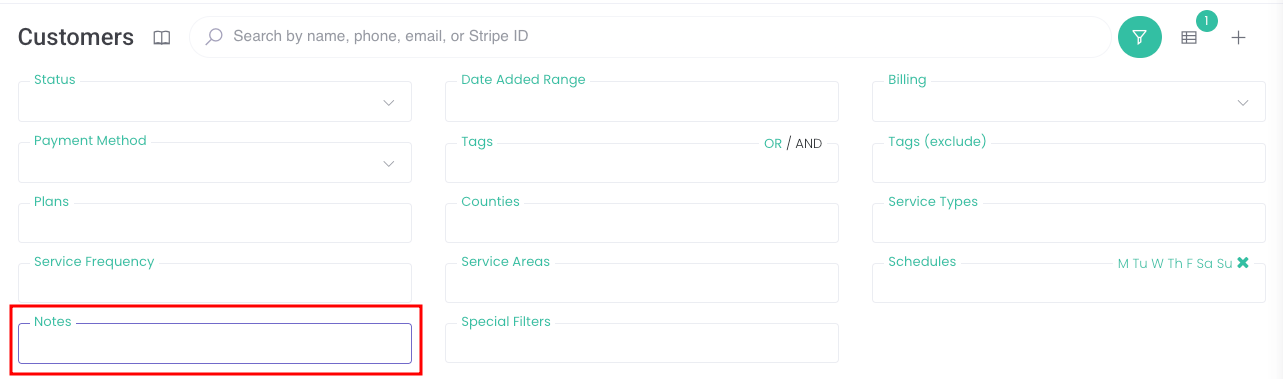
It's now possible to search the notes field on the customer detail page! Go to Customers > Customers and expand the filter. There's a field for Notes where you can type in words or phrases to search the database.
Search Stripe Plans on the Package page
You can copy a Stripe plan ID from a customer's detail page and paste it in the search bar on the Packages page (Services > Packages) to find the package associated with that plan. This can be especially helpful if you have more than one plan with the same name!

Pickup Location Column on Shop Orders Page
When you navigate to Shop > Orders, you'll notice a new column for Pickup Locations. We hope this helps provide a quick reference point when viewing all of your orders. In addition, you can filter the orders down by the Pickup Locations.
Customer Messages and Voicemail Updates
When viewing messages from customers, you can change the status of the message and add additional internal notes on the edit/change page. Go to Customer Support > Messages from customers, click the pencil icon and you'll see a field for Status with a drop down and a field for Internal notes.
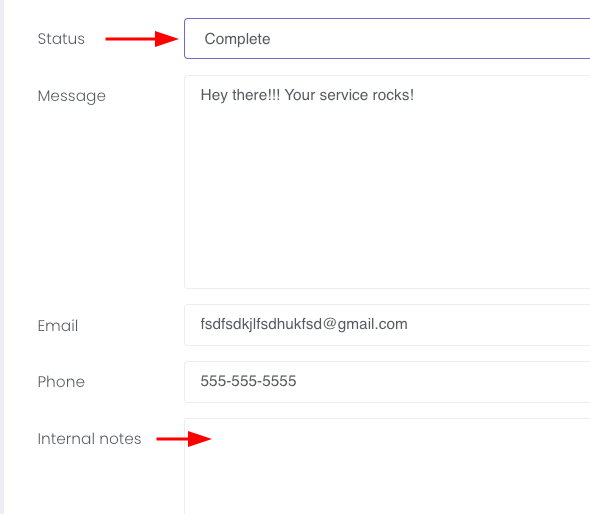
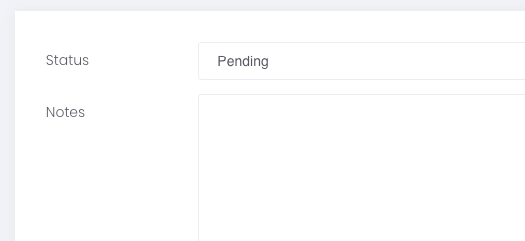
You're now able to add details to voicemails. When viewing a voicemail (Customer Support > Voicemail), you now have the ability to edit the voicemail's status and add notes too!
View Driver Notes on the Stops Page
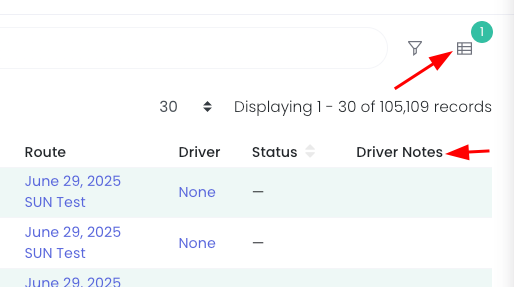
Driver Notes are now an optional column you can toggle on for quick viewing. Go to Routes > Stops and click the icon to the right of the filter icon to toggle.
View Average Time/Distance Per Stop Metrics
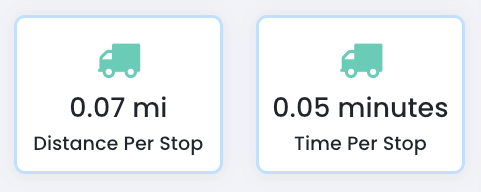
On a route change page, we've added two new metrics - distance per stop and time per stop.
Live Tracking Map Replay
You can now view a replay of your driver's route. Go to Maps > Live Tracking Map. Click the circle arrow next to the driver's route on the right hand side.

When the live tracking map populates, you'll see a replay bar on the bottom of the map. The blue dot will move along showing you path the driver took.

Major Driver App Update: Offline Mode, Smart Navigation & Performance Enhancements
Driver app now features offline mode, intelligent navigation routing, map rotation, last stop stats, and major UI improvements for faster, easier routing.
New Beta Driver App Features
Offline Mode - stopSuite will enter "offline mode" when it detects a loss of internet connection. While in offline mode, you can still submit stops and stop images and they will be put in a queue to be uploaded automatically when connectivity is restored.
Active Stop Navigation - When a driver finishes a stop, they are automatically routed to their next stop. The new system will take into consideration their next several stops as well as their current heading. This results in only suggesting the driver turn around if there is a significant time advantage otherwise it will prefer they continue on their existing heading. It will also adjust the approach so they are facing the correct direction when arriving at the next stop (pointed in the direction of the following stop). This should feel more intuitive for the drivers and follow the original optimized route better.
Map Rotation - When navigating to the next stop, a compass icon will appear in the top right. This will allow the driver to toggle automatic heading rotation adjustments so the map is always facing the same direction as the driver's current heading. This allows the driver to quickly see where they need to go next as the map will be pointing in the same direction as the vehicle. This feature is leaving "beta" status and is now considered a core feature of the app.
Quick Submit - If you are using the quick submit feature, you may now also use the "Require photo for missing status" and "Require photo for successful status" (this is a schedule level setting). If an image is required for those two statuses, an icon will appear letting the driver know they must also take a picture to submit the stop. Quick submit also works with offline mode.
"Last Stop Stats" - Drivers will be able to see the day, time, and status of the customer's last service. Additionally, the driver will see the number of stops this customers has had as well as the "% success" rating.
Time Until Completion - Drivers will be able to see the estimated time they will arrive at their end location. This stat is always visible from the bar of stats at the bottom right of the screen.
Performance Improvements - Much of the app has been refactored in an effort to make it as fast as possible. This should help drivers with large routes or older phones have a snappier experience.
Distance Alert - When set, drivers will receive a pop-up confirmation if they attempt to submit a stop beyond the distance threshold set on their Team User driver app settings.
UI Improvements
The route list page will now use your organization's brand colors.
Routes are now categorized as either "Your Routes" or "Other Routes". This allows drivers to find the routes assigned to them easier.
Switched font from Roboto to Inter - a font specifically designed for high readability on screens, even at small sizes.
Better tablet support. stopSuite always supported tablets but the rendering was awkward with larger screens. This has been addressed and optimized for tablets up to 11 inches.
The stop form (the one that pops up when you tap the green clipboard button) has been reworked to be more intuitive for the drivers. This includes some reordering of information, new colors, larger buttons and action items, and tags are visible without having to click "more".
The submit button on the stop form gives feedback by showing a spinner while the stop is being submitted.