Unified Service Map with Bulk Editing, Route Filters & Enhanced Team Permissions
Enhanced service mapping with polygon snapping, bulk service editing, payment filters on routes, and expanded Stripe permissions for staff team users.
Service Map
We've combined the Service Map and Service Area Maps for better functionality and use! From Maps > Service, you'll now be able to:
Manage new and existing service areas:
Create or edit service areas with a polygon snapping feature (say goodbye to slight overlaps or gaps between your service areas!).
Click on a service area to display additional info on the service area, such as: number of active locations, number of packages, and available schedules. Links to the service area's change page and the schedule change page(s) are shown for easy access.
View all services on the map and filter down by schedules, service areas, and tags.
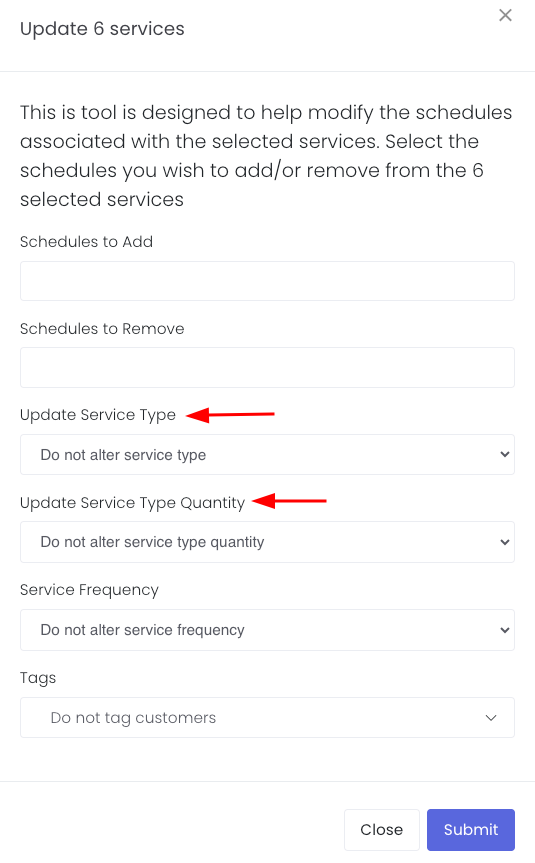
Update services in bulk, including adding or removing schedules, updating service type, and tagging customers!
Search an address to drop a marker on the map to see where that address is in relation to your service areas and other services.
A few things to note about permissions:
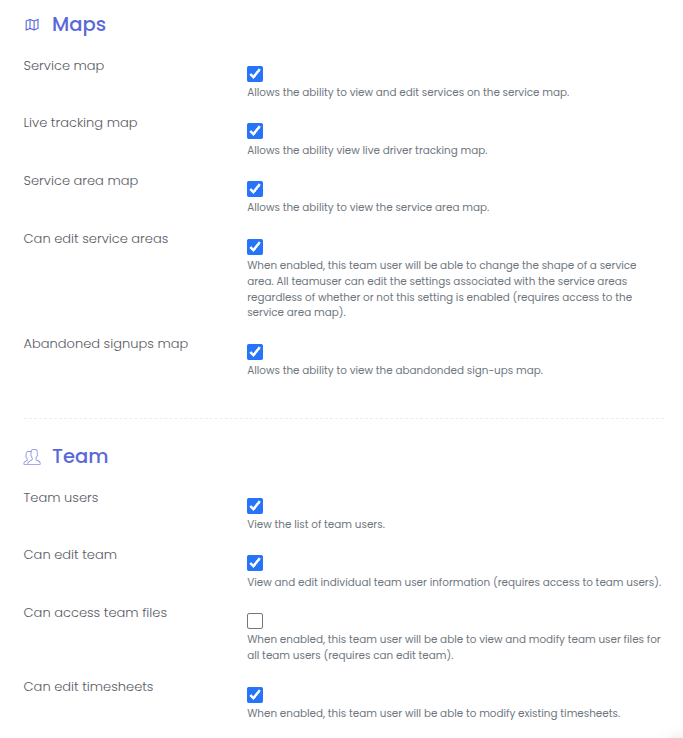
The service area map permission on the team user level has been removed.
The service map permission controls access to the service map. A team user with access to the service map will be able to view and edit services, create service areas, and edit service area shapes.
The can edit service areas permission allows the team user to access the service area change (edit) page.
Tag Customers from the Services List View
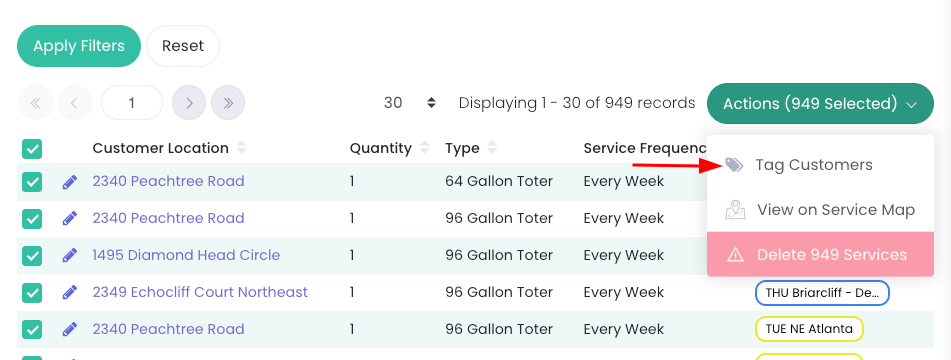
You can now tag customers from the Services page. Go to Services > Services > filter > select all > Actions > Tag Customers.
Payment Filter on Route Change Page
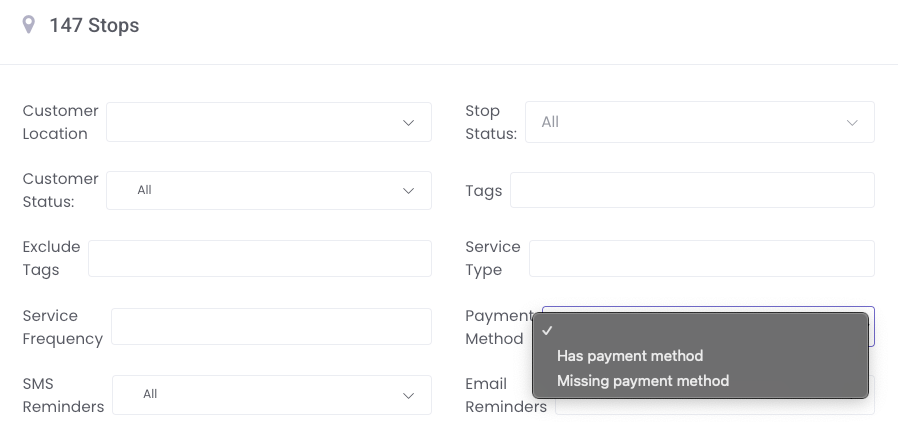
At the bottom of the route change page, you can now filter your stops by payment method. This can be helpful for clients who want to add driver actions in bulk to notify customers about adding their payment method in their portal.
Average Miles Driven Per Stop
You can now view the average distance per stop on the Route Detail Page.

Team User Stripe Settings
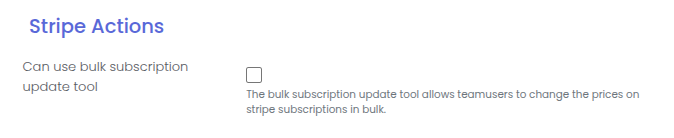
Team Users used to only be able to make Stripe changes if they were a Superuser. You can now enable the ability for Staff Team Users to make subscription changes in bulk and apply Stripe credits in bulk.

Archive Public Shops
If you have any public shops that are no longer being used, you can now archive them! On the shop's change (edit) page, there is a field you can enable to archive. This will deactivate the shop's URL, but will maintain all order and shop history.
Customer File Uploads, Tag-Based Email Sections & Enhanced Search Features
Upload files to customer portals, restrict email sections by tags, customize welcome email subjects, and search email logs by address or subject line.
Add Files to a Customer
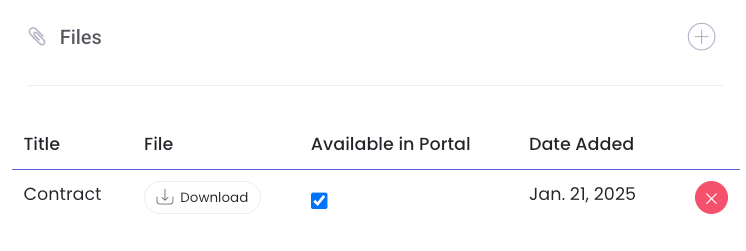
You can now add files to a customer and make those files available to the customer in their portal. On the customer's detail page, scroll down to Files and click the plus sign to add a new file:
Tag Customers from the Shop Orders Page
Go to Shop > Orders (filter if necessary) then select all > Actions > Tag Customers:

Edit the Welcome Email Subject Line
You can now edit the subject for the Welcome Email! Go to Settings > Registration. From there, you'll find a field for Welcome email subject:

Restrict Email Sections by Tags
You can now add email sections that are restricted by tags! In your direct email, add a new section and click the three dots on the left. Click Settings and add any tags you'd like to restrict by:

View Subscription Status on the Cancellation Request Page
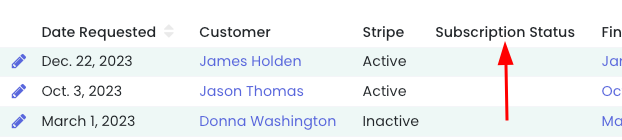
We've added a column for Subscription Status on the Cancellation Request page for quick reference. If the customer has a current Stripe subscription, a bubble with renewal information will populate in that column:
Search Emails Logs by Email address and/or Subject
When searching email logs, you can now search by a customer's email address and/or the subject line. Click the filter icon to expand the advanced search menu:

Shortcut Tip! You can quickly view a customer's email and SMS logs on their user. Click the three dots next to the user for links directly to the customer's email and SMS logs:

Introducing Granular Team User Permissions for Enhanced Access Control
Enhanced security and role management with new granular team user permissions. Control what non-superuser staff can access in the stopSuite admin portal.
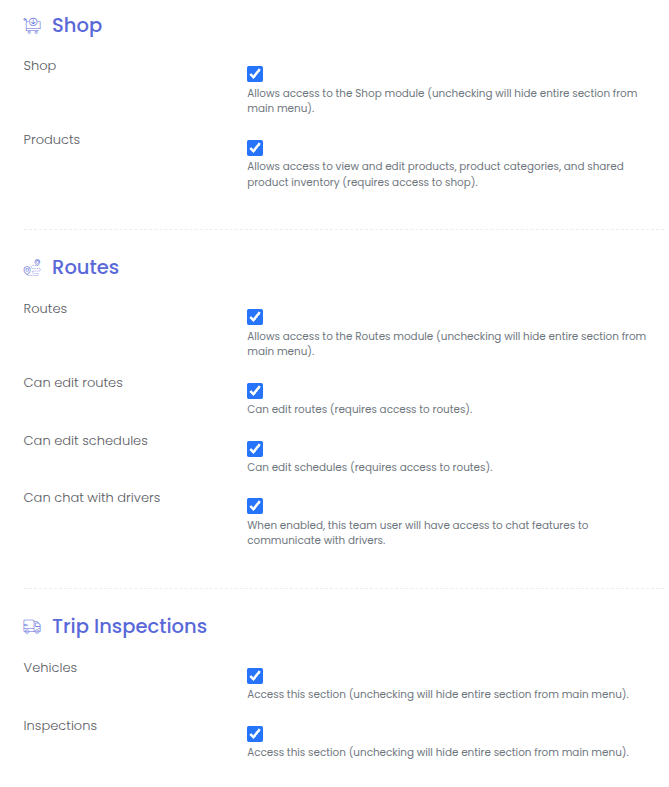
We have recently implemented new Team User permissions! These permissions give you more granular control over your non-superuser team users.
NOTE: these new permissions only affect what can be accessed in the stopSuite admin portal (not the driver app). All permissions are enabled by default so everyone still has the same level of access they did before this change.

Major Public Shop Update: Coupons, Stripe Checkout Integration & Custom Fields
Public shop now features gift certificates, coupon codes, streamlined customer authentication, unified Stripe checkout, and custom checkout questions.
We're excited to announce several enhancements to our public shop that will improve the customer experience. These updates have been seamlessly implemented, requiring no action on your part.
Key Improvements:
Gift Certificates and Coupons - The public shop now supports coupon codes and gift certificates.
Simplified Customer Authentication - Returning customers will enjoy a streamlined login process. When they enter their email address, they'll receive an instant verification code via email or SMS (if enabled), making the checkout process faster and more secure.
Upgraded Checkout Experience - We've integrated Stripe's hosted checkout page for the public shop. Now the signup form, portal shop, and custom forms all use the same checkout system. This unified approach provides a consistent and secure payment experience across our platform.
Customer Field Integration - You can now add custom questions to the checkout process for new customers, allowing you to gather specific information tailored to your business needs. Please note that existing/returning customers will not be prompted with these additional questions.
$0 Purchases - The public shop now supports zero dollar purchases.
New Customer User Creation - Similar to the "Almost finished page" in the main signup form, new customers will be prompted to create a user account after the payment is completed.
Special Services for Routes, Chat Auto-Reply Hours & Bulk Service Editing
Add special services to routes, reorder custom fields, set chat auto-reply hours, generate global impact reports, and bulk update service types and quantities.
Special Services
Similar to driver actions, special services allow you to add a stop to a route before it has been prepped. Unlike a driver action, which adds specific instructions for a driver to complete at a stop, a special service ensures that a service type/quantity will be assigned to that stop. This feature is set up on the route page.

Reorder Customer Fields
You can now easily reorder the options for a specific customer field that has a type of dropdown. From the customer field page, you can click the "reorder choices" button to drag and drop to change the order.

Chat Auto-reply Hours
If you have the customer chat feature enabled (Settings > Twilio Integration > SMS Mode - Chat Enabled), you can now enable operating hours for your auto reply message! Click the chat icon followed by the gear icon. From there, you will be able to set the days and times you are open:

Company-wide Global Impact Statistic Report
Under Customer Support > Impact Statistics, you can select all or individual statistics to get your organization's comprehensive total. Once you have your stats checked, click Actions > Create Global Impact Statistics Report.
Bulk Update Service Types and Quantities
You can now update service types and quantities in bulk! Go to Maps > Service Map. Filter using the fields on the right side and then use the polygon tool to select the customers you'd like to update. Click Actions > Update Services.
Note: This does not update Stripe plans!