Multiple Service Location Images with Captions & Reordering
Multiple Service Location Images
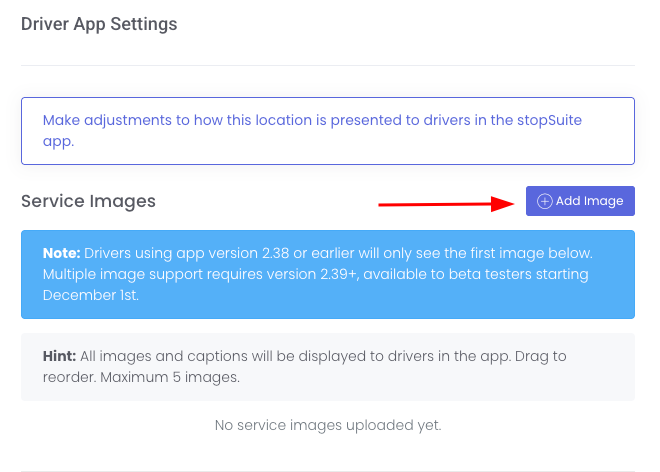
That's right! You can now add up to five service images per service location. To add additional images, go to the service location page and scroll down to the new section titled Driver App Settings. Click the + Add Image button:
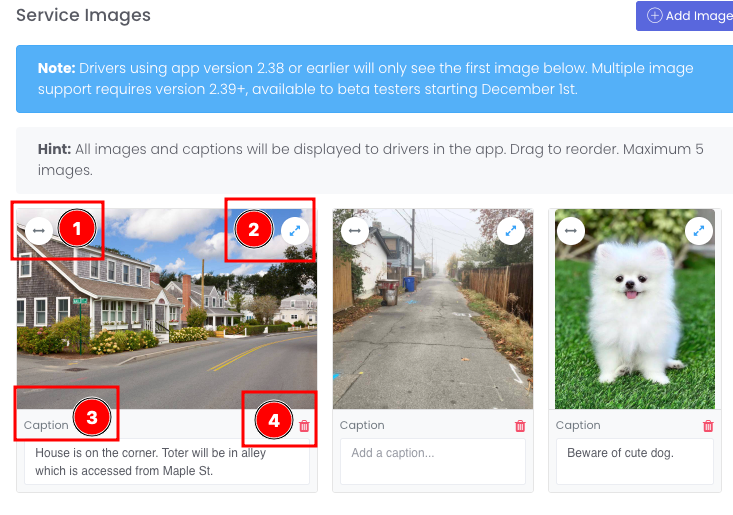
Once you add an image, you'll see some new features:
You can use the horizontal arrow to re-order the images.
You can use the diagonal arrow to expand the image.
You can add a caption to help provide additional context to that specific image.
You can delete the image by clicking the trash can icon.
Currently, only drivers using the Beta version of the app will be able to see multiple images. Once we push this version of the app live this week, drivers using app version 2.39+ will be able to see all the images. Encourage your drivers to update their app if they haven't done so already!
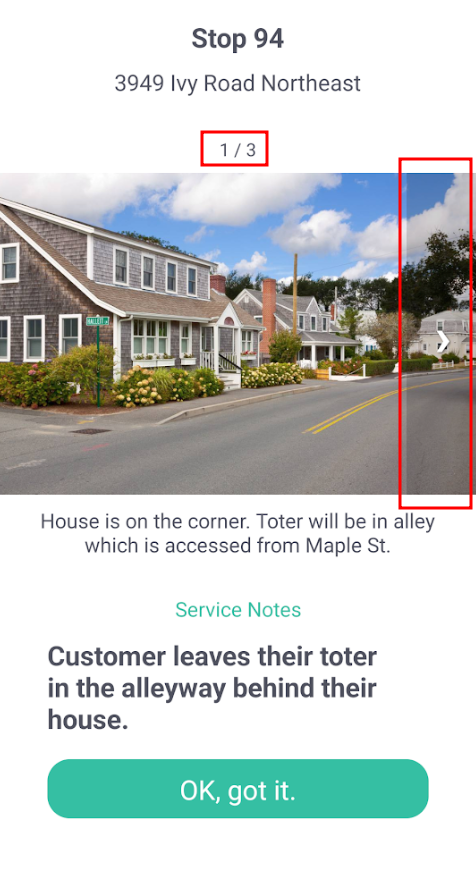
From the app perspective, when the driver clicks on a stop with a service image (and notes), they will be able to see the number of service location images, an arrow to scroll forward (or back), the caption (if there is one) and the service notes: