
Vehicle Maintenance Module: Track Tasks, Logs & Automated Service Alerts
You might have noticed that the "Inspections" category on the lefthand menu has been renamed "Vehicles" with a new subcategory "Maintenance":
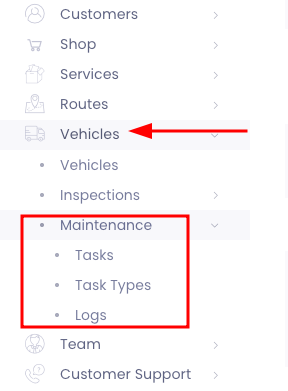
The Maintenance subcategory is broken down into three sections:
Tasks: these are recurring actions that need to be completed
Task Types: these are similar to categories. You'll define each task type so your tasks stay organized. Think: oil changes, tire rotation, inspection, etc.
Logs: this is a list of all the completed tasks
How it works:
First, you'll want to create your different task types (Vehicles > Maintenance > Task Types).
Next, you'll want to create your first Maintenance Task. Go to Vehicles > Maintenance > Tasks and click the plus sign to create a new task.
Once you select a vehicle from the drop down menu, the current mileage will populate in the help text below Mileage threshold:
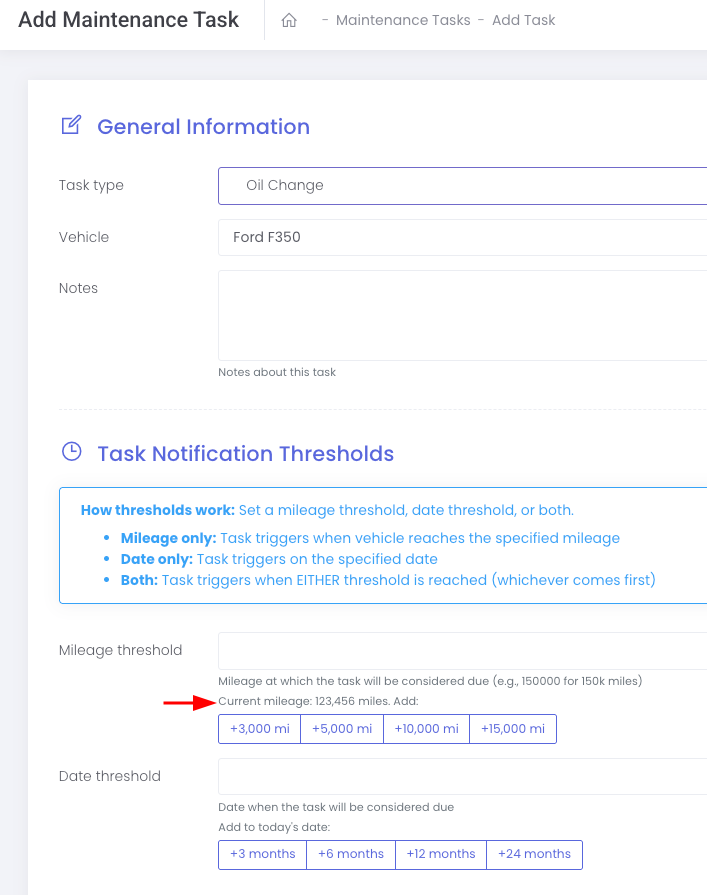
The Mileage threshold and Date threshold fields determine when a task is due.
To receive email notifications, complete the Notification Settings section:

Back on the Tasks list view page (Vehicles > Tasks), you'll see a list of all active tasks, including their status (scheduled, overdue, past due):
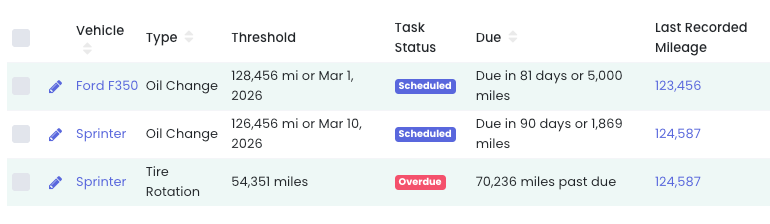
To edit or complete a task, click the edit button next to the task. To edit the task, you can update the mileage and/or date threshold, and/or manage your notification settings.
To complete the task, click the Add Maintenance Log button at the top of the page:
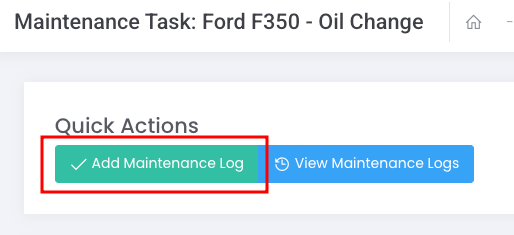
From here, you'll be able to log the date, mileage, add notes, attach receipts or documents, and schedule the next maintenance task.
Tasks and maintenance logs will be tracked on the vehicle level too. Go to Vehicles > Vehicles. Click the pencil icon next to the vehicle to open the vehicle page. You'll notice a new field at the top where you can add an image:
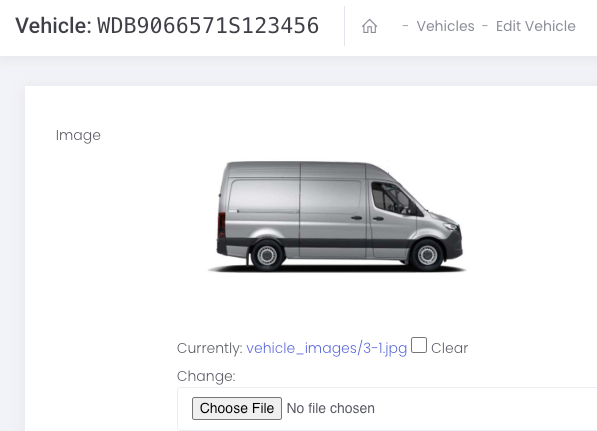
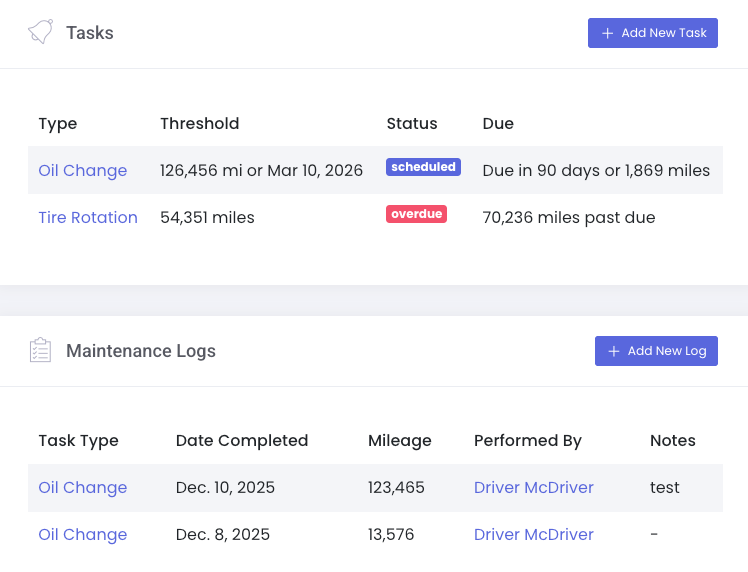
At the bottom of the page, there will be two new sections - Tasks and Maintenance Logs:
You can add new tasks, new logs, or view them by clicking on the Type or Task Type:
Additional Improvements
With upcoming holidays, keep in mind that at stopSuite a week goes from Monday to Sunday. If you cross the week threshold, for example, move a Monday route to the previous Sunday, you will need to create a cancelled route to prevent duplicate routes and reminders!
We've added a User Invitation Button section to the direct email module. We hope this provides a little more flexibility for sending out different user invitations emails/
You can now preview the "Almost Finished" page (the final page that comes after a customer has selected service and completed the checkout). To view this, go to Settings > Registration > General. There's a button at the top of the page.
You can now require customers provide their phone number on the first page of the sign up form. To enable this setting, go to Settings > Registration > General.