
Daily Route Summary Dashboard & Automated Route Completion Emails
View daily route summaries at a glance from the dashboard, customize driver action text for new signups, and receive automated route completion email reports.
Daily Route Summary
You may have noticed the new Daily Route Summary available for you on the Dashboard! Click the button and you'll be able to view the day's routes at a glance including number of routes, driver actions, and service skips. Scroll further and you'll see a snapshot of each route ahead of time (this summary will only show the day of routes and not any future routes). This is also printable if you prefer hard copies.

Driver Actions Update
You now have the ability to customize the default driver action textfor new customers signing up. Head to Services > Stripe Plans and edit the "driver action instructions" text box to customize. It's prepopulated but if you'd like to add any specifics for your drivers for new customers, you may now do so.

Route Summary Email
We've recently added a route summary email to be sent once a route is completed; it includes the amount of stops, optimized time, number of driver actions, average speed, and more!
Simply turn on the toggle for "Route Summary Notifications" withing Team > Team User for the user you'd like to receive these. Note that the email is only triggered when the driver submits the final odometer reading.

Advanced Tag Search, Route-Level Vehicle Assignment & SMS Flag Notifications
Search customers with AND/OR tag logic, assign vehicles to individual routes, send SMS notifications when flags trigger, and require photos per location.
Tag Search Function
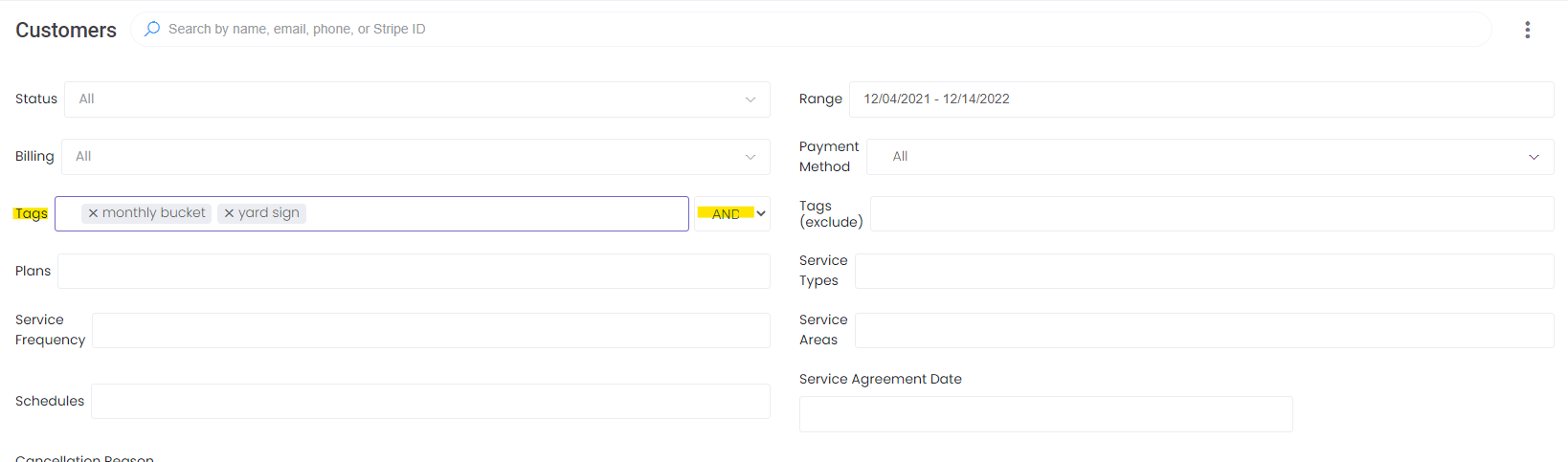
You now have the ability to search by tags within Customers > Customers with more flexibility! We added an option so that you can filter customers who have all of the selected tags (selecting the word "AND") or filter customers who have either of the selected tags (by selecting the word "OR").
Assign a Vehicle
If you'd like to assign a specific vehicle to a route you are now able to do so. Previously vehicles were assigned on the schedule level but now you are able to select a specific vehicle on the route level. You can select the vehicle by clicking on the gear icon from the route page or from the optimization map as well. Drivers can continue to override a vehicle in the App if needed.
Notify Customers by SMS for Flags
You're able to notify any customer by SMS if a Flag is triggered on their stop. Head to Routes > Flags and select the Flag you'd like to have notify customers. Scroll to the bottom and you can choose to enable the notify customer with the text included in the specific Flag.

Service Location Photos
We've added a "Require photo" to each service location (Customers > Locations). Feel free to toggle that box if you'd like to require a photo every time the location is serviced. If you'd like us to turn this on globally, please let us know!
